OMD Mobile 3 - New UI
This document describes the most important changes in the new OMD Mobile App (version 3.x). The layout and user interface have been redesigned,while the core functions for job processing and the existing workflows remain unchanged.
The biggest innovation is the agenda view with an integrated map and date selection. In addition, there is a new, clear profile section where administrative functions such as login data and document viewing are bundled.
The synchronization speed has also been improved so that new jobs and updates appear in the app more quickly.
Start of Day Screen
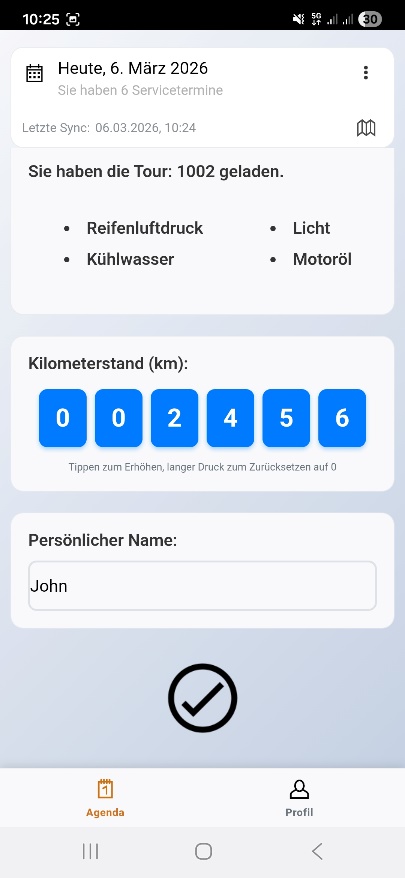
After opening the app, the Start of Day screen appears as usual. It has been graphically redesigned but still provides the same functions as before (entering your personal name, mileage, etc.).
What's new?
A new feature is that the Start of Day screen now always appears at the beginning of the day and the agenda for the current day can only be viewed after completing the Start of Day process. This ensures that the Start of Day is not forgotten and that important data is recorded.
Within the Start of Day screen, you can use the date selector at the top or the swipe gesture in the date area to view upcoming or previous days.
Agenda View
What's new?
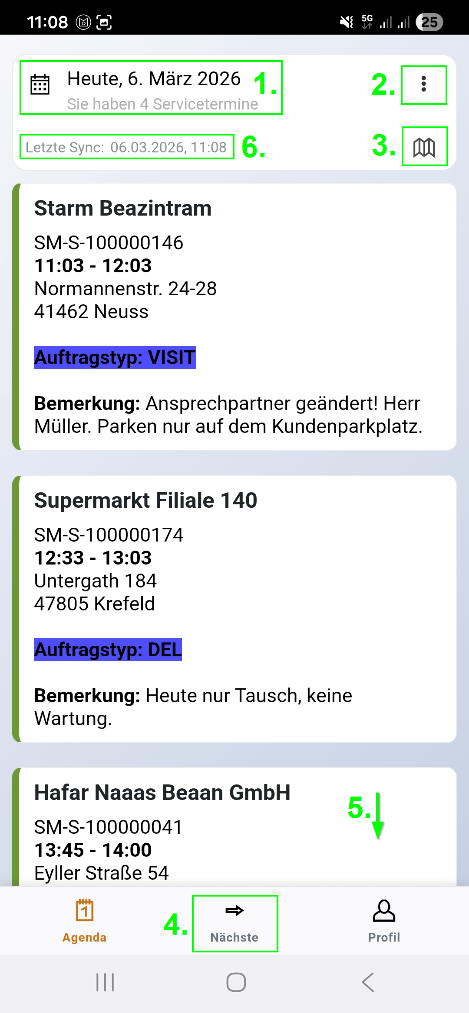
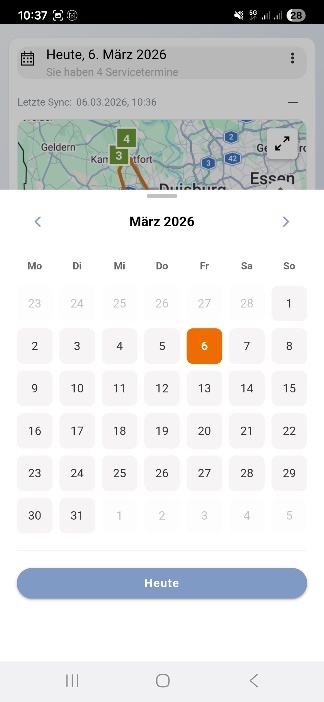
Date and Day Selection (1.)
By tapping on the day/date, a date picker opens which allows you to jump directly to any day or quickly return to the current day:
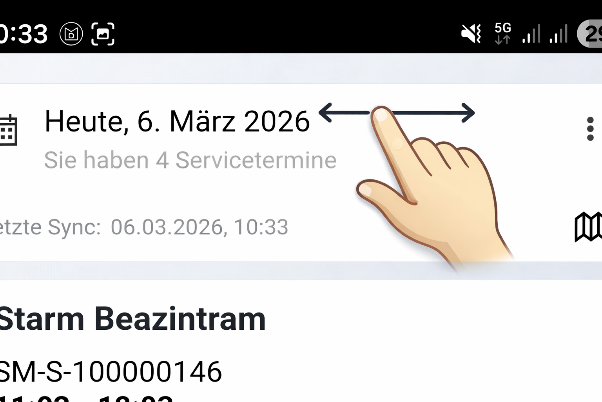
Using the swipe gesture, you can easily navigate between days in the agenda's date area, moving forward or backward or simply "swiping" through the days:
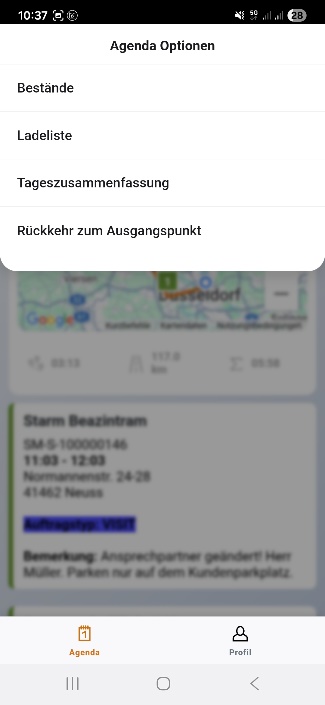
Agenda Options (2.)
Here you will find the agenda options: Inventory, Loading List, Daily Summary, and Return to Starting Point.
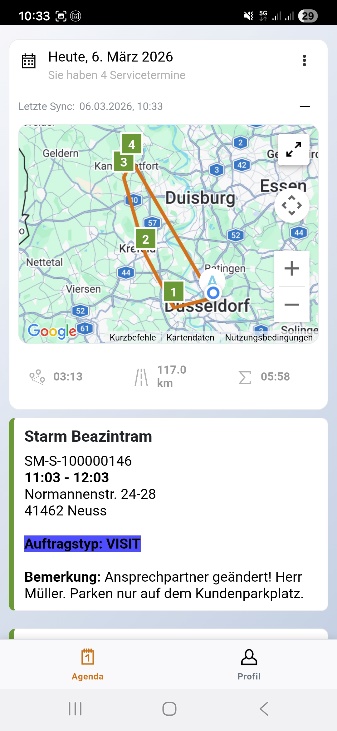
Map View (3.)
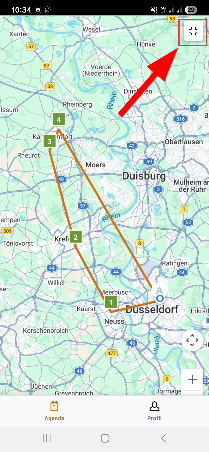
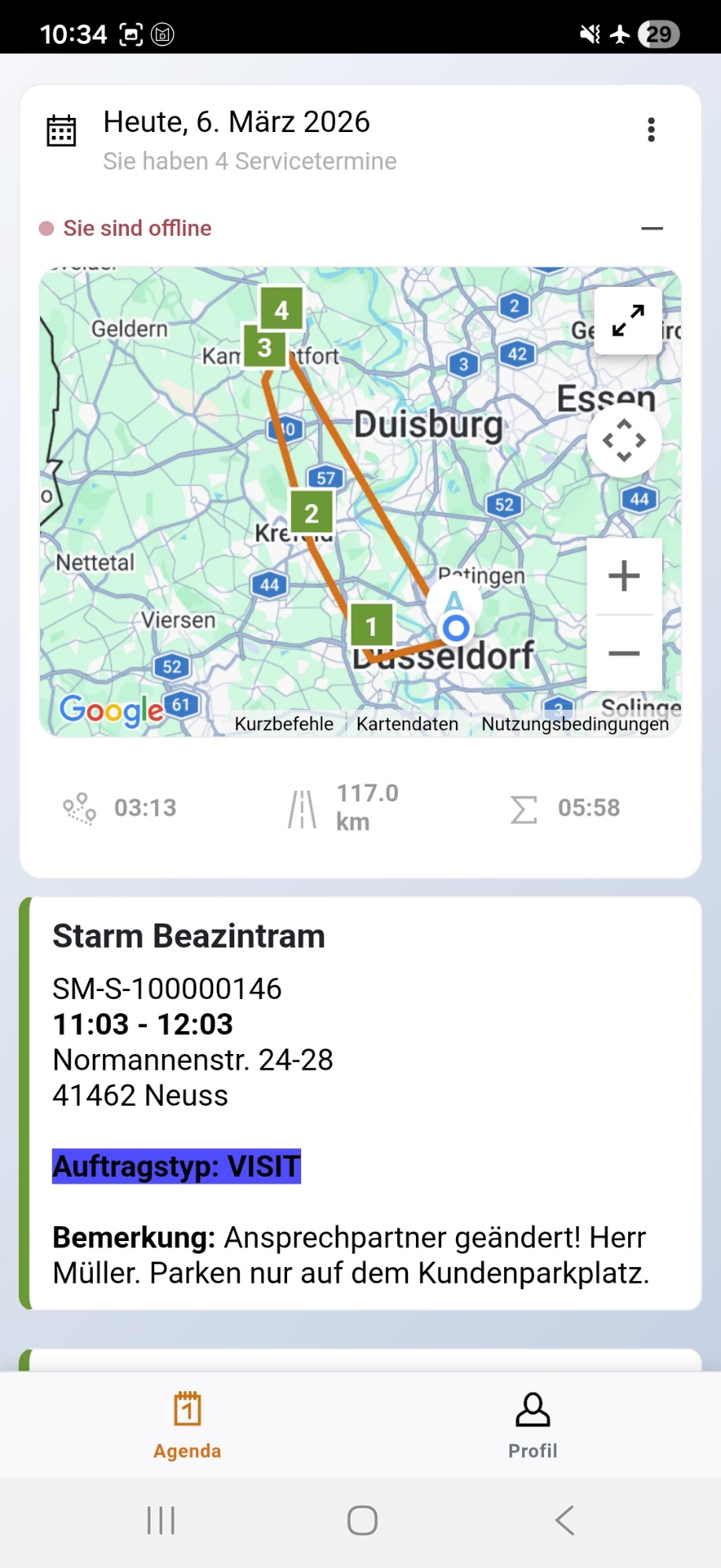
This opens the map view, which displays the current day's route on the map. Below the map, key metrics such as the estimated travel time, total kilometers to drive, and the total working time for the day are displayed:
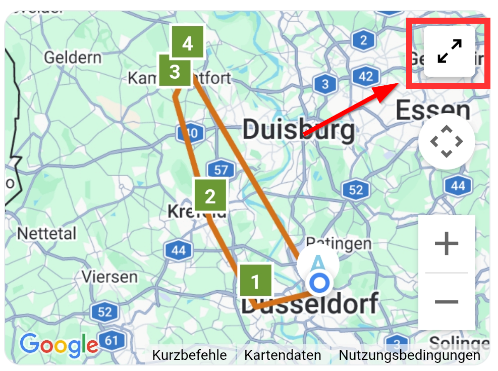
You can also view the map in full-screen mode and minimize it again:
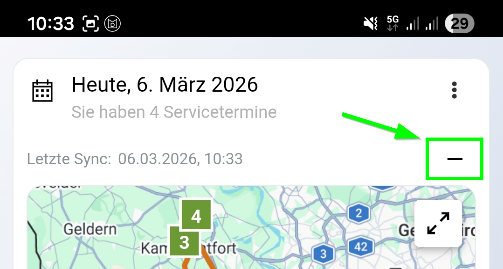
Using the minus button, you can close the map at any time:
Upcoming Jobs (4.)
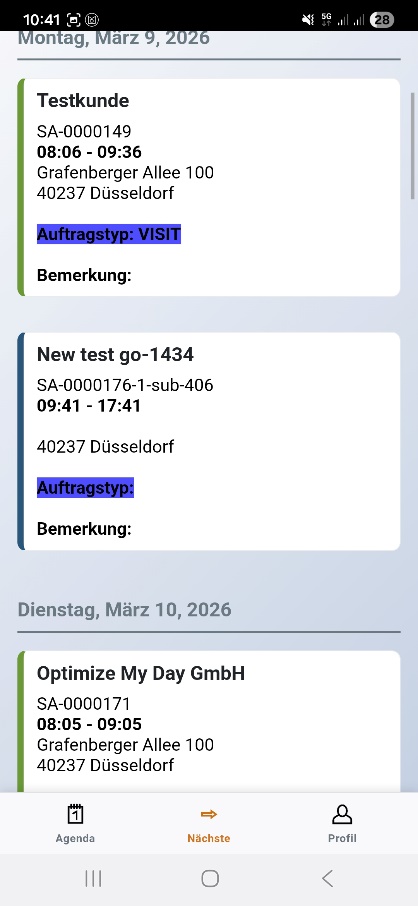
This button opens the overview of upcoming jobs (similar to the "Upcoming" tab in the old app). It shows all scheduled jobs starting from tomorrow onward (according to the visibility settings defined by your administrator). Jobs can also be opened and started from here.
Completed Jobs (5.)
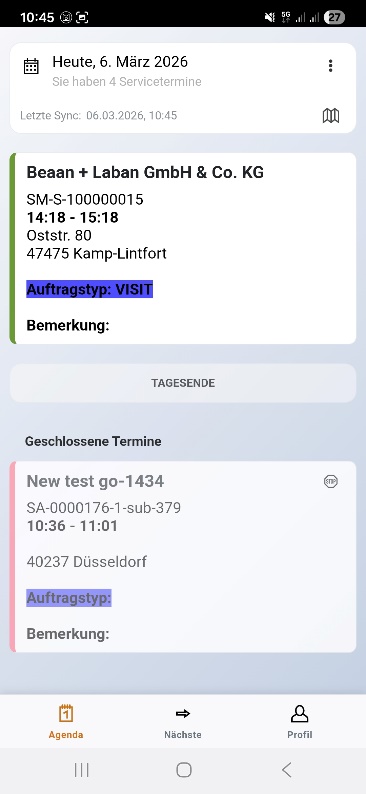
The completed jobs of the day are listed at the end of the agenda:
Sync Status (6.)
This displays the last synchronization time with the OMD server. It also indicates if you are offline or if there is no connection to the OMD server.
Profile View
What's new?
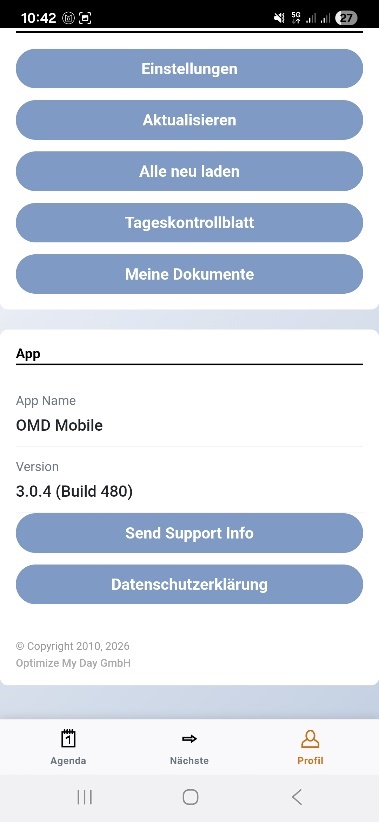
In the profile view, all additional functions (previously under "Settings") are now bundled together. This includes features such as your personal documents (if OMD Document Hub is used), updates, the daily control sheet, and the option to send support information to OMD support.
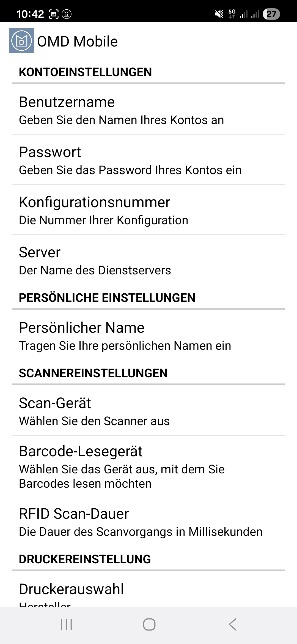
Under the "Settings" section, you will find the login data input as usual:
What Remains Unchanged?
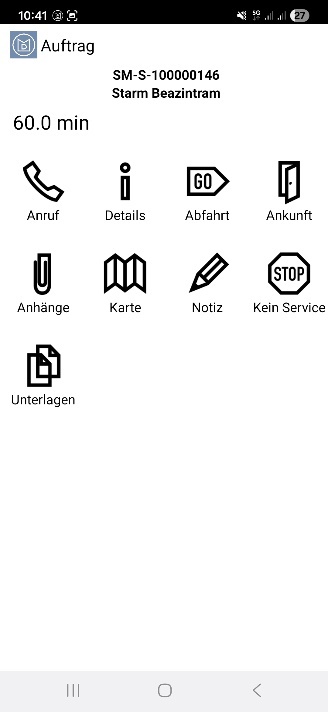
Job processing from start to completion remains the same. All icons and functions are unchanged: